More than 3 years ago I decided to move from developing small applications and left the 'widgetsphere' to focus more in the casual games industry.
I created Games-Garden, a facebook app and a bunch of games.
These days my mode has changed a bit and I don't feel like spending all of my spare time creating games which might be played only a few thousand times. The competition is too big and there are lots of 'pirates' stealing games (specially from China) which is not fun at all.
So, I've decided to go back to create these small apps known as widgets.
The first one I'm releasing is this iClock. Similar to the Digital Time and Date widget that I created more than 5 years ago, which by the way it has been cloned many times already, the iClock shows the time in a 12 hours format and as well it shows the date when moving your mouse over the small calendar icon which shows the day. The graphics obviously have a big influence from the iDevices and so far it looks like people like it. What do you think?
iClock
Personally I think is nice :)
I had the idea of creating a similar widget many years ago when at my previous job I worked on a countdown and these days the idea came back after my current task at work includes a copy of that old countdown. So yeah, it looks like everything is a remix... :D
Inspired by Salvador Dalí's "The Persistence of Memory" where melting clocks mix with other elements including a group of ants, there it is yet another analogue clock for my collection...
Persistence of a Genius
The time is first taken from the computer system then shown as an analogue clock; the ants react to the mouse pointer. I've taken some elements from different widgets I built before as some of the elements used by Dalí were used in more than one of his masterpieces... When I was developing it, I was listening to "Salvador Dalí" by the Spanish band Mecano about 3 or 4 times in a row... I love that song! :)
If you like the Persistence of a Genius, you can get it from this link.
The way I'm learning things, specially about building widgets, is from trial and error. This is not the best way to learn as it's better to prevent than to cure but as I don't have enough time to read and study about the subject and because this is just a hobby for me, I just do the things as I think they will work but after finding the "errors" I realize there are many things that can be done in a better way.
It's not that I'm new on the subject (building widgets) but it's my nature, I love experimenting, I love finding out how to do things in a different way and I love using my creativity when doing stuff.
So, the series I wrote about "Building flash web widgets" are WRONG! not because the script doesn't work nor because other technical issues but because of some basic aspects I didn't take into account when I built the widgets.
This is a review of those posts about building widgets and the final product:
Web Widgets vs Desktop Widgets - Subject It might sound obvious but web and desktop are two very different worlds and even though there are many people out there trying to merge both worlds, bringing the web to the desktop and vice versa, web and desktop are still very different from each other, desktop is personal, web is open to the world. Desktop widgets interact more with your system and with the data that comes from it, being this a CPU usage, space left in the hard drive, etcetera, things no-one else cares about but only you. Web widgets interact more with web users showing visitors statistics, countdowns for different events, music you like, and other things you definitely want to share with other people. How about building a clock as I did for the tutorials on building widgets? It works for both web and desktop, it's a common subject but the concept should be treated in a different way: keep it simple for the web and for the desktop, it can be simple or it can be interesting & complex as well.
- Usability When we are on-line we want the information to be displayed now, we want to understand what it's going on ASAP, therefore, showing an experimental clock where the user has to think to understand what the time is just DOESN'T WORK.
How do I know that? Well, just check out the pathetic statistics; after more than a month out there, the clock has not even 30 subscriptions. On the other hand, we are used to admire the desktop and its applications, we can open any widget and take our time to check it out, we love playing with it, dragging it, changing colours checking the different options, and if we don't like it just drag it to the recycle bin and that's it... More than 500 downloads in less than a month tells me that. - Dimensions Even though your web widget can be displayed in many different environments, most of them and in most of the cases, they will be displayed in the sidebar of a blog; remember that nowadays not only my aunt but hers cat has a blog and even if it's not the rule, your widget will end up in a sidebar's blog. As mentioned in this post, the "Pie Clock" is 200 by 200 pixels and that is TOO BIG for any sidebar. I would recommend any size from 100 to 180 pixels width and depending on the concept/design, from 50 to 300 pixels height. I would say, 180x300 pixels is just the perfect size, however, this depends on the subject-concept-design. Take into account that Google adds some extra pixels to the sides of your widget (b*stards! :D ) as you can see on this breakout-mini widget that just looks AWFUL. - Size Not the dimensions but the size of the application itself, known as well as weight, in bytes. Might seem to be obvious but as we are used to develop things for the web, we tend to optimize all the graphics for the web. In fact, when building web widgets, we SHOULD optimize for the web all the graphics and our widget should not be bigger than 50kb (that is already BIG!), however, that again depends on the concept. Remember that people will have more than one widget and we should think about the loading time of a website and how important it is for users (when a site takes to long to load, people tend to close it and visit the next one...) When building for the desktop, the graphics should look really good, we don't need to optimize them and we can add all the necessary stuff using the best possible quality as users don't care about how big a downloadable file is; of course, we don't have to abuse, I would say from 2 to 3MB file size would be fine. - Shape I know I want to be as creative as possible, I want to break the usual square and my widget should have crazy shapes everywhere. Well, if we are using Google Gadgets to distribute our web widgets, that won't be the case, Google adds an ugly box around the widget with an opaque background so our web widgets will look like in a prison that doesn't let them "breathe" (graphically speaking). Did I called them b*stards before? :D For desktop widgets its different, we can have nice shapes, of course, we shouldn't abuse nor we should have transparent octopus shapes everywhere, keep it simple but break the square box.
- Final touches Adding nice animations and transitions is essential for an eye catching widget, of course being careful not to reach the limit from nice to cheesy. The advantage for web widgets is that the whole widget can have an animation, it can move from side to side, change shape, etcetera, but desktop widgets, specially with exotic shapes, request a lot from the processor when moving on the stage. Another thing to add is an extra menu using the right button of the mouse, read this post for web widgets and this post for desktop widgets. Something I'm considering is adding a "read me" .txt file attached to the desktop widgets where I can explain how to use the widget and other documentation.
- Extra options When adding customization options to the web widgets, the options are usually available only when first selecting and installing the widget. Could be great if the web widgets would have a better way to update this customization options when already installed. I'm not quite sure but Clearspring allows you to update this options when the widget is already in use, I remember having read something about it when adding one of their widgets on my blog. Desktop widgets usually have the option to change settings at any time, that's a great thing and a big advantage from desktop widgets over web widgets.
I have already written something about the distribution of web widgets but if we are talking about distributing desktop widgets, the approach should be a bit different.
If you have built a Mac Dashboard widget, definitely you would need to submit it to Apple Dashboard, however, you shouldn't leave the things there and should submit it to a different distributor as well, in this case I would recommend you Widgipedia. In fact, Widgipedia is the only distributor that accepts any sort of widgets, from web widgets to Mobile widgets and of course desktop widgets so if you have followed my tutorials on Building desktop widgets with Zinc and right click on desktop widgets, the following step is the distribution.
Something I like the most about submitting widgets at Widgipedia is that your widgets don't need to be accepted and approved by any person so as soon as you have finished filling in the form and click "submit" your widget will be available for distribution. Great! and to make the things even easier, the form to submit a widget to Widgipedia is unbelievable simple.
The steps to follow are: - Sign up if not already a user
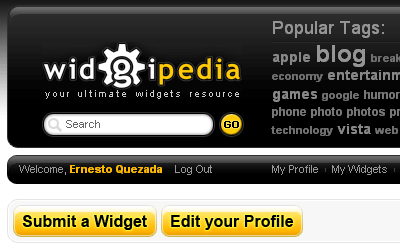
- click on the Submit a Widget button
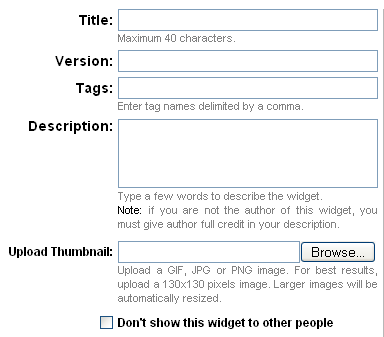
- Fill in the form
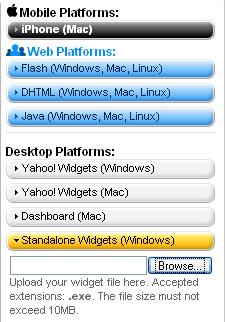
- Choose the platform and browse for your widget (in this case is a standalone widget for windows)
- Click submit and you should see the message "Your widget was successfully updated." and that's it, your widget should be the first one in the gallery and the distribution will start...
Check out the "pie clock" desktop edition that I just uploaded.
So now you know, for desktop widget distribution, Widgipedia is the way to go.
It was about a year ago that I started playing with small flash applications that later on evolved to "widgets". As I didn't know they were actually widgets, I called them "buttons" and offered an embed script to my readers so they could use them; the first one was "add to delicious flash button" and I offered many more after that one (and many people still use them!) It was until December 2006 that I discovered Widgetbox and decided to register my widgets over there for a better distribution. There are many advantages on registering widgets with any distributor, for example, more people will see them therefore more people will use them; usually distributors have a "comments" system so you can get feedback from your widgets users and feedback is one of the most important things when developing any application as it allows you to see what is good and what can be improved.
As you might now, there are many widget distributors around and is up to you where you want to register your widgets, but I would like to tell you my thoughts: - Even though Google Gadgets offer money to their top developers, I wouldn't advise you to register a widget with them as it's not easy, there's no promotion, no proper statistics, and your widget will be completely lost in the wild... - Clearspring it supposed to be the top distributor in the galaxy that has served billions of widgets but to be honest I had a very bad experience with them as the only widget I've submitted has few visits and seems like no-one is using it...
So, for web widgets distribution I recommend you three different sites: - Widgetbox - Widigipedia - Yourminis Each of these websites have their pros and cons but from the ones that I've tried they are the best for widgets distribution.
Now let's see how easy it is to register a widget on one of these sites, this time I've chosen Widgetbox. From Widgetbox site, these are the benefits of registering flash widgets with them:
No-paste installation into MySpace and other sites. Users can install into MySpace and TypePad without cutting and pasting. More platforms are coming soon.
MySpace linking. We enable your widget to link out of MySpace.
User configuration of Flash. Allow bloggers and other subscribers to configure your widget. This actually changes the generated <embed> tag. Users get a live preview of their changes as they make them.
In addition, Flash developers get everything we offer all widgets, such as:
Widget Syndication Metrics. Track the spread of your widget across the internet with your own widget analytics dashboard. Learn more.
Viral adoption. Widgetbox provides a simple, direct mechanism for people that see a widget in the wild to get it for themselves.
The first thing you would need to do is to register yourself with them (link at the top right of the page). Then follow this link to register your widget. - Select "Register an existing remote service as widget" - Fill in the first form (yes, I'm afraid this is one of the bad things about Widgetbox, to register a widget there are many steps to follow... ) - When you click next you will get to the widget configuration page where you can add different options to your widget so it will be customizable. One parameter you might want to add is the wmode= transparent. Please check the Flash Widget developer guide to find out more about this parameter and other options. - Click next to preview your widget; if you don't want your widget to be resized then tick the related option. Bear in mind people like to customize the widgets as much as possible. - When you are happy with your widget look, click next to fill in the final form (uh! at last! well, not quite...) This is the most difficult bit as you will need to think categories, tags, summary, description and upload a picture of your widget for the gallery. I will advice you to have ready a 96x96 pixels png thumbnail of your widgets best view. When you have finished filling in the form, press save widget and you will get message similar to:
The widget is not in the gallery yet and to submit it you need to press "submit to gallery", if it's ready, there will be another message saying "your widget is ready to be submitted to the gallery" so press "submit to gallery" (déjà vu? no, is another thing Widgetbox has to review...) et voila! well, again, not quite... Unlike other distributors, Widgetbox people first check each widget before showing them in the gallery. But basically is just a matter of time (usually one day) before your widget starts being seen & used by other people and the viral distribution takes place... So, go on and submit your web widgets now :)
salut!
--- Update --- As I said before, from the following day I submitted the widget to Widgetbox my widget is in the Gallery:
There was something missing from my previous series of posts "Building flash web widgets" that I want to talk about, in fact there are three things I want to add:
The code in AS3 - I haven't yet written a single line of actionscript 3 as both at home and at the office I'm still using Flash 8 but Felix Sanchez has re-written the code into actionscript 3 so please check it out if you are already using Flash CS3 or an alternative tool to publish Flash Player 9.
Customization - As I said before, I have changed the design so its clearer for the user to understand and I have added something very important for web widgets: customizable colours. Customization in one of the most important bits of a widget if in case you want it to be successful and popular, this is something I had to learn from trial and error as at the beginning I didn't think about giving more options to the users and their complains taught me the lesson... Tip: add as many customizable options as you can because nowadays the web is very users centric and users want to show their own style and taste in their websites.
and what's the difference? well, now when changing from second to second, minute to minute and hour to hour, the change is more smooth and when reaching the limit, either 12 or 60, there's a very nice animation when they go back to the origin (the centre of the widget). Oh lovely tweener! :D
in the same line of code we are managing width, height and calling the next function. I think is cool, that's why I like tweener so much.
and the final widget:
That's using the same code but different design so now is you changing the design and getting your widget ready to upload to a widgets distributor (That I will explain in a future post)
with this code we are telling flash to change seconds_mc width and height to a bigger number every 1000 milliseconds (1 second), and if we test the movie, in fact seconds_mc grows every second. The problem is that it doesn't stop growing, so let's add some more code:
function removeSeconds():Void { seconds_mc._width = 6; seconds_mc._height = 6; }
function checkSeconds():Void { if(seconds>59){ seconds = 0; removeSeconds(); } }
timer = setInterval(attachSecond, 1000);
In our function "attachSecond" we are calling "checkSeconds" to see whether the cycle has been completed and we have already 60 seconds, if so, we call removeSeconds to resize seconds_mc to 6 pixels that we decided to have (in the previous tutorial) instead of a 0 (zero) to see something on the stage. Then we should attach another minute:
if we test our movie, it should work fine and the clock should be ok, adding minutes and/or hours when adequate. The whole code looks as follows:
var timer:Number; var timedate:Date = new Date(); var realHours = timedate.getHours(); var hour:Number = (realHours<=12) ? realHours : realHours-12; var minutes:Number = timedate.getMinutes(); var seconds:Number = timedate.getSeconds(); delete timedate;
As a good practice, we have declared the variable timer at the beginning so flash knows that the variable exists and which sort of variable is. Then is up to you to add more stuff, for example tweenings, changing design, etc. and don't forget to add something to help "reading" the clock, for example the cross I drew in mine showing numbers from 1 to 12 and from 10 to 60 so the users will have an idea about the time... and basically that's it! you have a clock working 100% and you can now upload it to any widget distributor like widgipedia, widgetbox or yourminis. One of these days I will post a clock I'm working on using the same code but different design to give you an idea of what you can actually do.
This is the second part of the series "building flash web widgets", click here to see the first part. Ok, I've done my homework and I know how my clock is going to look like, of course in the meantime I will continue explaining how to build something similar to the clock in Part I. Now that we have the time showing in the output window, we need to translate that into objects on the stage.
- From the menu, go to insert>timeline>layer to add another layer and rename it "elements"
- Press select the oval tool pressing "o" and draw an circle on the stage, the size is not important but has to be symmetric, mine is 25x25 pixels, and is better if it has no stroke so it won't look strange if at different size. Select the circle and go to modify>convert to symbol (or press F8) to convert it to a movieclip and call it "circle_mc".
- Select the instance of circle_mc you have on the stage and write "hours_mc" as its instance name and change its alpha value to 90.
- Add two more instances of circle_mc to the stage, one will be called "minutes_mc" and the one on top will be "seconds_mc"; minutes_mc will have an alpha value of 60 and seconds_mc will have an alpha value of 30. We need to align all the elements to the centre of the stage.
- Now the code. Lets add the following lines to the actioncript we already have:
What we are telling flash is, the width and height of each instance it will change depending on the value of the related variables. Minutes and seconds are multiplied by 3 and hours are multiplied by 15. why? ok, let's see the maths: - The idea is that the circles grow as much as 180 pixels so they will still be visible on the stage, as each minute has 60 seconds, then we divide 180 by 60 that give us 3 so the seconds will be different to one another by 3 pixels in size. Same for minutes. Now, hours is different as there are only 12 hours per cycle, so we divide our 180 pixels by 12 and that is 15, so every 15 pixels there will be one hour. But there is something I don't like; how about if the hours and minutes are 0 (zero)? visually will not be nice as the stage will be almost empty... As we still have space to complete our 200 pixels, let's add 6 pixels to each value:
So, the idea of this "series" of tutorials is to build a flash widget and upload it into a widget platform for the world to see, use, rate & you become famous as I did... :D (I'm joking, ok?)
I will not ask you to build the basic "hello world" as I would prefer to go much further than that, even though we will build a basic widget: a clock; but we will use the time units in a more creative way and we will build something like:
I assume you have Macromedia Flash 8 (or Adobe Flash CS3) installed and you are familiar with it.
Let's start:
- Create a new flash document and change its properties going to modify>document or pressing control+j (apple+j if in Mac), the new dimensions should be 200 width & 200 height, however, its better if your widget is even smaller; change its frame rate to 24fps and click ok.
- Our stage is empty and we have only one frame; rename that frame "actionscript" and lock it as we don't want anything else on that layer, just our actionscript (best practices, you see)
- Select the first frame (the only one we will use, best practices...) and add the following code:
var timedate:Date = new Date(); var realHours = timedate.getHours(); var minutes:Number = timedate.getMinutes(); var seconds:Number = timedate.getSeconds();
Press control+enter to test your movie and you should see something like 22:44:38 in the output window and it is the actual time as taken from your computer's system. What we are doing is: - instantiating the date object in a variable called timedate. - calling three different methods of the date object to get the hours, minutes and seconds and storing the values in three different variables: realHours, minutes & seconds. - deleting the date object instance as its not needed any more so we clean it from the memory (best practices...) - with trace we tell the output window to show us what the variables have stored.
ok, we now know how late it is, but, to be honest, I don't like that of "22 hours" as its sounds to military for me and I'm used to see 10pm instead of 22 hrs... so, let's change the code:
var timedate:Date = new Date(); var realHours = timedate.getHours(); var hour:Number; if (realHours<=12) { hour = realHours; } else { hour = realHours-12; } var minutes:Number = timedate.getMinutes(); var seconds:Number = timedate.getSeconds();
Similar idea, we have just added a new variable: hour and its value depends on realHours value, using a conditional we are sure not to use the 22hrs format but a more understandable one (and better for this example). Testing our movie, we should have something like 10:45:14.
Actually, the code looks a bit too messy; having a conditional in the middle of the way doesn't look that good, but good job there is a short cut for that conditional, so, we change the code again:
var timedate:Date = new Date(); var realHours = timedate.getHours(); var hour:Number = (realHours<=12) ? realHours : realHours-12; var minutes:Number = timedate.getMinutes(); var seconds:Number = timedate.getSeconds();
It's exactly the same, just a different syntax that I find cleaner. If you test your movie, your output window should show you something like 10:50:11.
Well, I'm afraid that's it for today; I've got to do some house work now but we will continue soon. In the meantime, think about your design, read more about the date object and see you later.
I'm a bit obsessed about data, I think of data as numbers because every single piece of data represents already a unit! For example, when I built the CPU Usage widget, I translated the numbers into bars, tweening depending on the data; same when I built the Moving Earth widget, where the magnitude of earthquakes is shown using bars as well... But if we take numbers and translate them into squares, so X units will be represented by squares, then we have something like my Firefox Screensaver or the Squares Clock widget:
As is experimental then expect some minor bugs :P If you like it, you can get it from Widgetbox.
more than a month ago, I wrote "My widgets on widgetbox" where I said I wouldn't write about my widgets on this blog anymore.
Well, actually I changed my mind as I have decided to continue writing about them and is because of many reasons: - Feedback: I can get feedback, comments, suggestions and requests - QA: To test them and to see how they look like when published on a blog - Incompatibility: Some of the widgets I've done or updated are not compatible with widgetbox - Promotion: I want my widgets to be used by other people so I need to let people know about them - Personal: To use my blog :P (writing is a good habit and specially for me as English is not my mother tongue...)
so, to catch up I will write a short list of the web widgets I've done and I haven't mentioned here: - Mini del.icio.us hotlist: shows hotlist from the del.icio.us homepage - Flash Date Calendar: simple flash calendar with digital clock - Firefox Digital Clock: firefox download counter and digital clock - Digital Time and Date: simple digital clock and date (74 subscriptions so far) - Flash web counter: website visits counter (123 subscriptions so far)
So far, I have submited 9 web widgets to widgetbox and all of them are doing well; I have many more ideas but haven't got the time but from now on, I will continue writing about them here on my blog.
Some time ago I asked the guys at the Widgipedia to open a section for web widgets but as the Widgipedia is still in beta, they told me:
Flash widgets are coming soon, as part of our goal to host "the best widgets and gadgets across any platform"
so I continue with my web widgets and put them in Widgetbox. On the last day at Flash on The Beach I was the lucky winner of a MDM Zinc copy which allows you to create desktop applications from flash including screensavers and WIDGETS! So I did my very first desktop widget today, after few days trying to understand the tool that for any strange reason doesn't like vector images... and uploaded it to the Widgipedia!
It is a very simple Skype Analogue Clock but I think is cool, specially because is my first desktop widget :)
The next one of my flash web widgets series is a Firefox 2 Downloads Counter with an analogue clock. Again, I had to deal with CrossDomain policies as flash cannot load any XML if the domain where the swf lives is not allowed to. Instead of writing to the mozilla fundation and asking them to either host my swf or to allow my domain to get the XML data from them, I tricked these policies getting the data on a php and loading this php onto my flash file as I did with my Skype Status Flash Button. Well, to the point... For those of you who want to use this widget, just copy and paste this code onto your html page: